Creating Your First Automation
Use the Update Tracker Records preset: Pull Stats → Condition Check → Tracker Action—then save, schedule, and confirm the run in Runs & Logs.
Walkthrough: **Update Tracker Records** preset (Pull Stats → Condition → Tracker action). Same variable ideas apply to email, invoices, etc. Steps save left-to-right; click **Save** when you’re done.
1. Open the Automations page
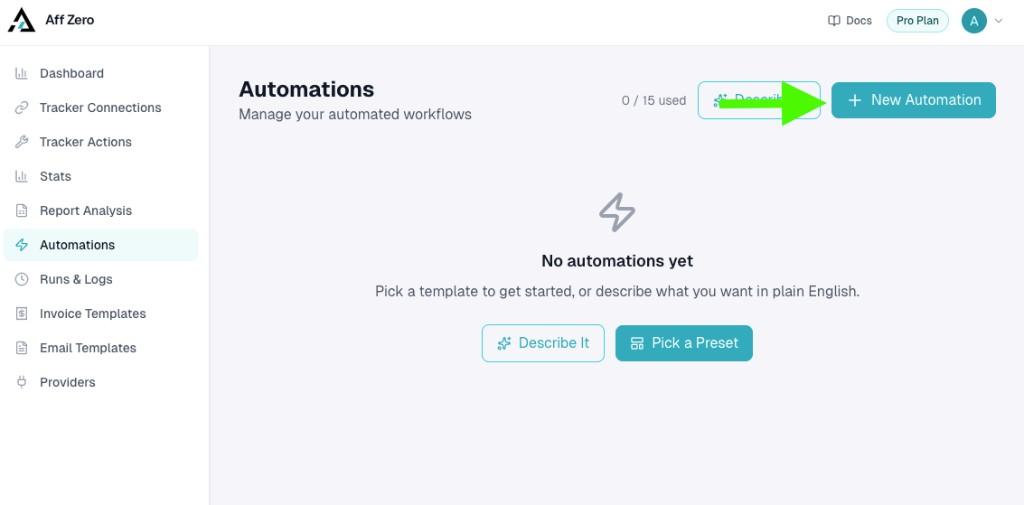
Go to Automations in the sidebar. When the canvas is empty you’ll see shortcuts for Describe It, Pick a Preset, or + New Automation—the entry point is the same once you’re ready to build.
2. Pick a preset (we use Update Tracker Records)
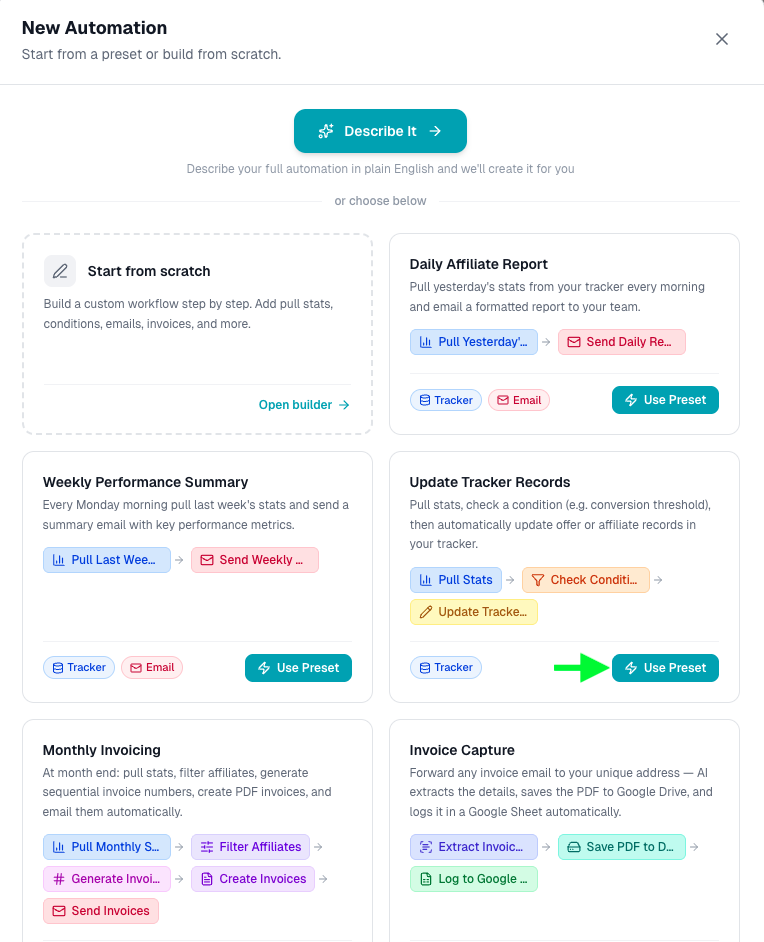
After you click New Automation, decide how you want to start. You can let AI draft the workflow with Describe It (Pro+), open an empty canvas with Start from scratch, or—what we recommend for a first guardrail automation—pick a preset. Scroll the grid to Update Tracker Records and click Use Preset. That template wires up Pull Stats → Check Condition → Update Tracker Records so you only need to fill in connections, stat types, thresholds, and action fields.
3. Review the three-step canvas
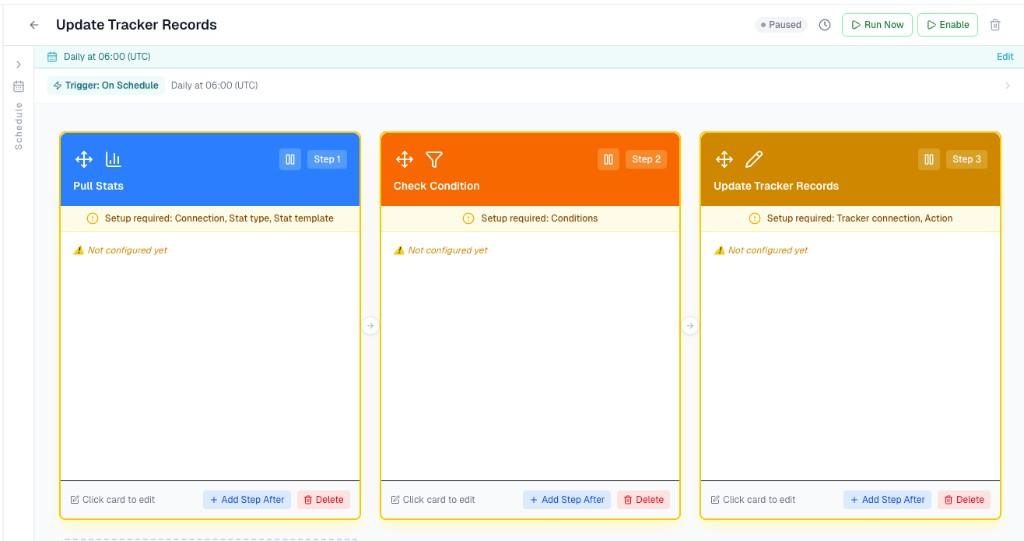
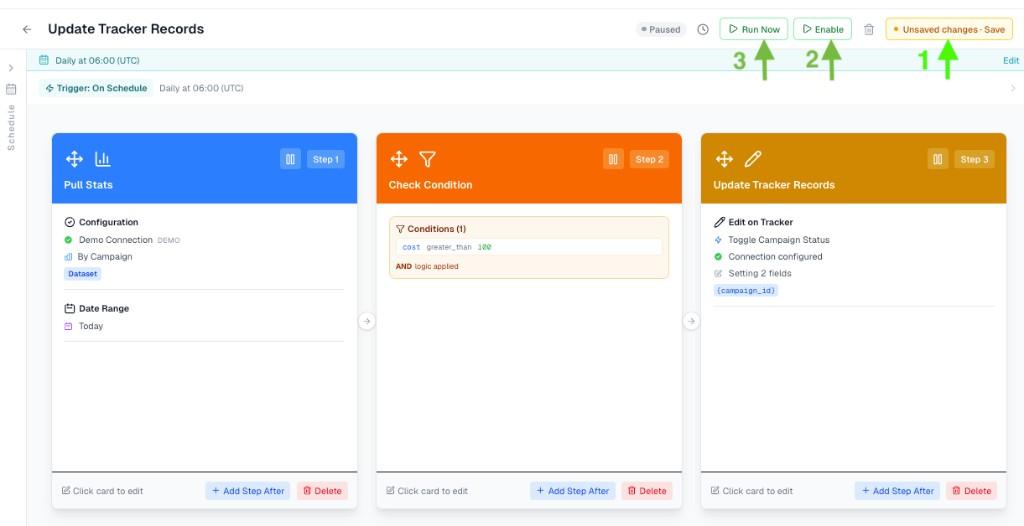
The preset lands you in the builder with three cards already chained. Yellow “Setup required” notes are normal: they remind you to choose connections, stat templates, conditions, and tracker actions before the automation can run.
4. Configure Pull Stats
Open the Pull Stats card. Choose Dataset mode when row counts change between runs (reports, filters, `{data_table}` emails) or Cell Selection when you always track the same handful of affiliates, offers, or campaigns. Pick the connection, stat type (example: By Campaign), and a date preset such as Today or Last 7 Days—presets keep ranges fresh on every scheduled run. Match the tracker’s timezone, expand Advanced Parameters if you need them, then use Pull Stats / Test Pull to hit the real API.
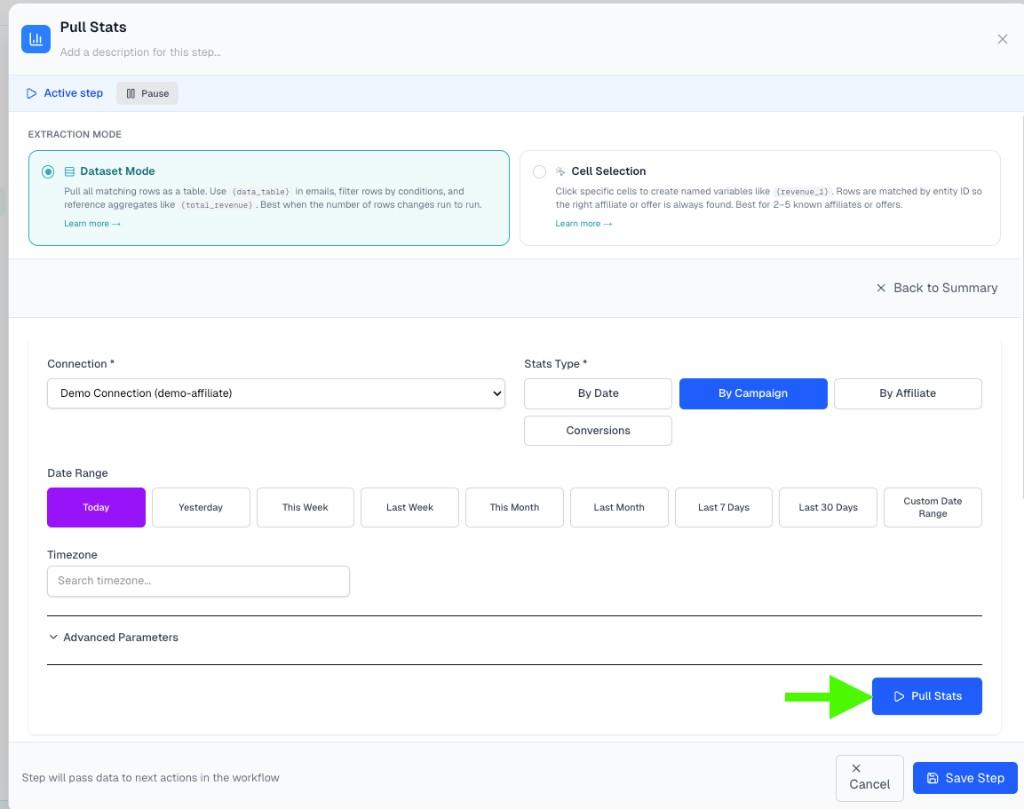
5. Confirm the preview table
The table proves your query, connection, and stat type line up with what you see inside Affise, Binom, or CAKE. Every column you expose becomes part of the variable catalog downstream—including `{data_table}` for HTML emails and aggregate helpers like `{total_revenue}`.

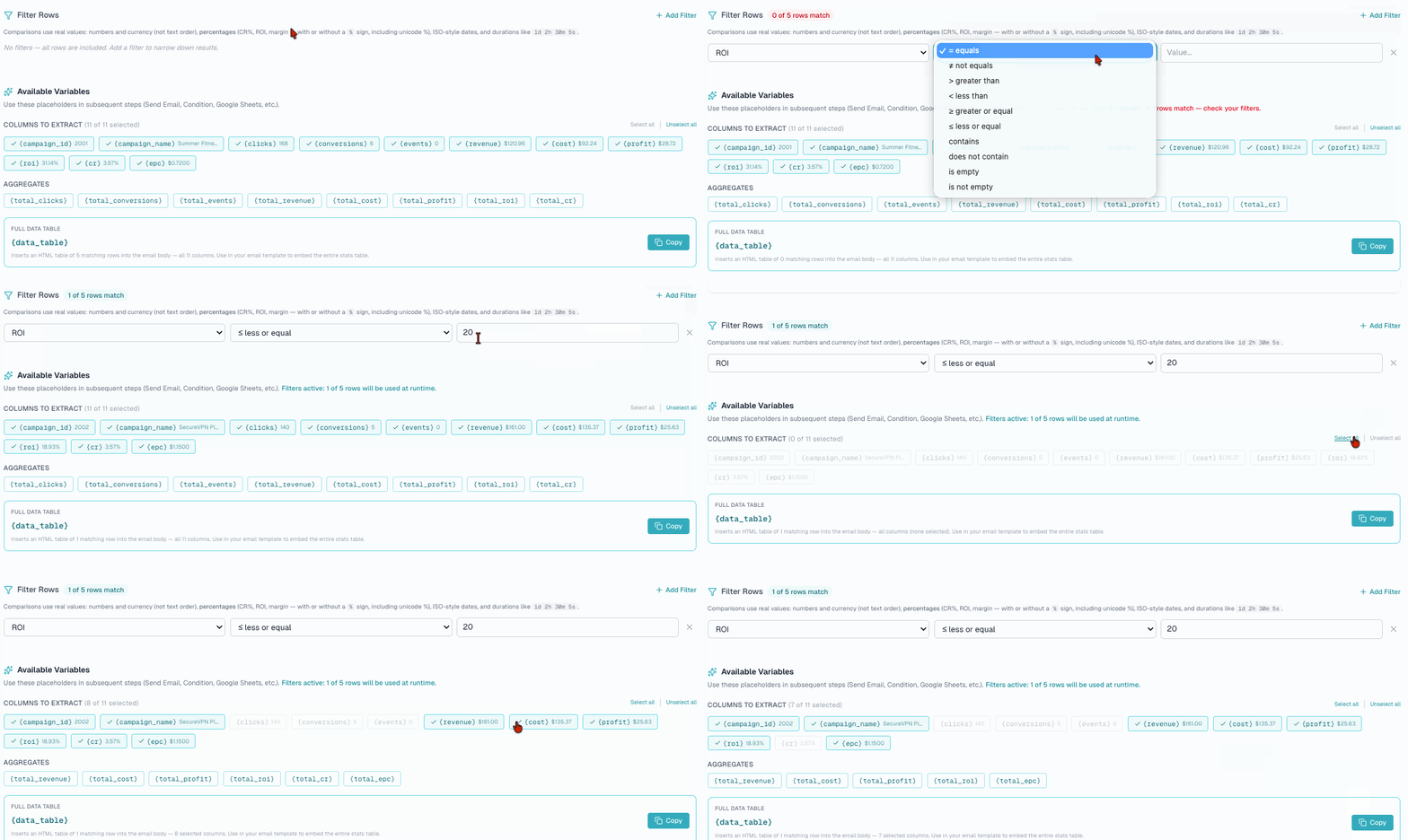
6. Narrow rows and choose outputs
Optional Filter Rows rules drop campaigns that shouldn’t trigger the automation; leave filters empty to pass the whole dataset through. After the pull, pick which columns generate variables, review aggregates, and copy `{data_table}` when you need an HTML snippet for email bodies.
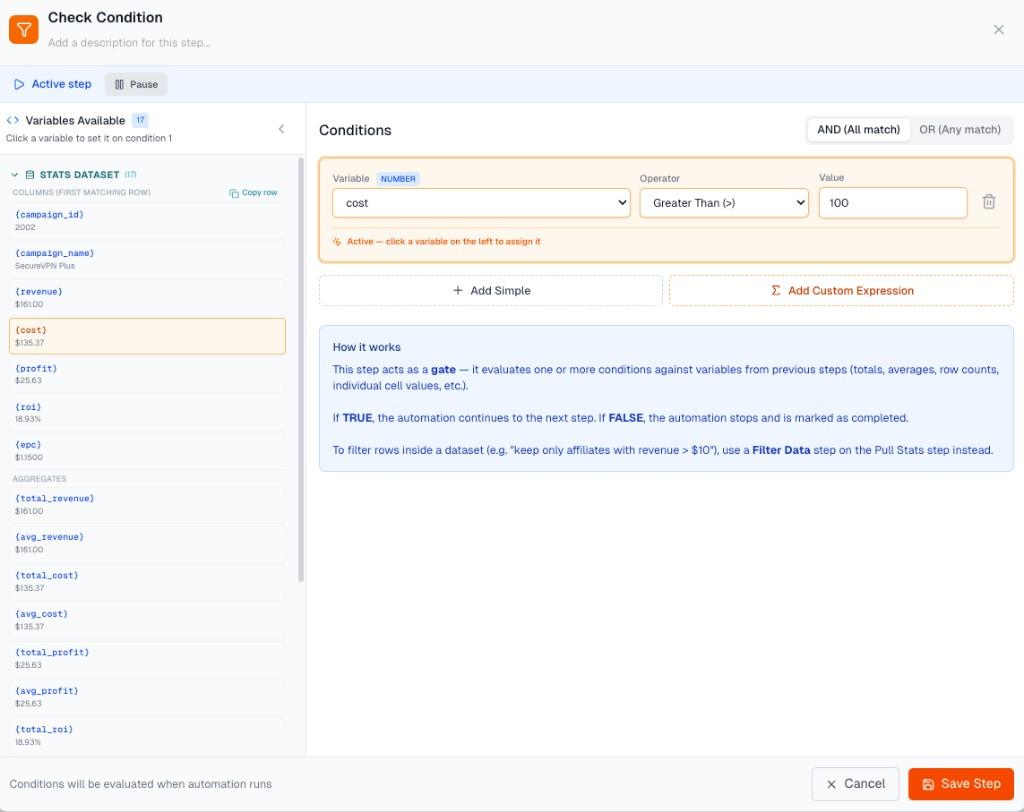
7. Gate the flow with Check Condition
Check Condition compares variables from earlier steps using AND/OR logic. If all required comparisons pass, the automation continues; if not, it exits cleanly as “stopped by condition” in Runs & Logs—not an error. Here we require cost greater than 100 before pausing a campaign, which protects you from acting on tiny spends.
Read more
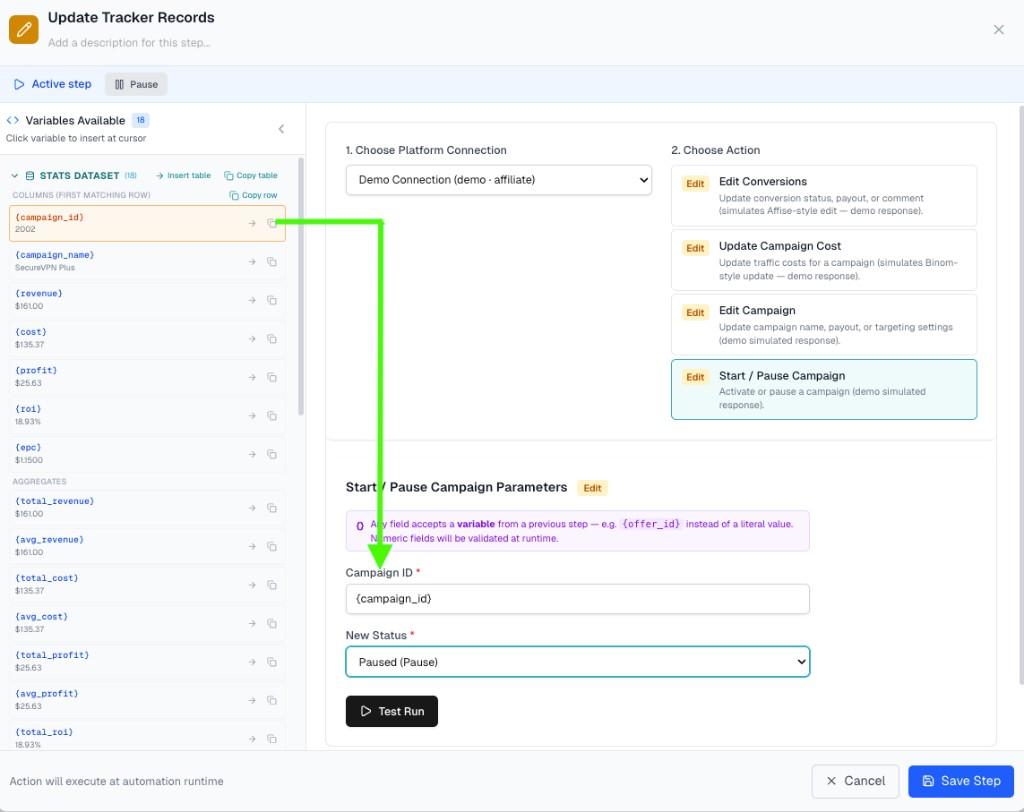
8. Finish Update Tracker Records
Tracker Action Edit calls a saved Action Template (defined under Tracker Actions) to pause campaigns, tweak caps, or update any supported endpoint. Map fields like Campaign ID to `{campaign_id}` from the Variables panel so each run targets the live row returned by Pull Stats. **Test Run** lets you fire the API call directly from the step editor. To test safely, paste a real hardcoded value into the parameter field (e.g. type `2345` instead of `{campaign_id}`). That way the request hits a specific campaign you control—it won't touch other records. Variables like `{campaign_id}` only resolve to real data when the full automation runs; during Test Run they stay as literal text if no live context exists.
9. Save, Run Now, then Enable
When you see Unsaved changes, click Save. **Run Now** executes the automation exactly as the schedule would — it is a **live run, not a dry-run**. Pull Stats fetches real data, Send Email actually sends, Tracker Action Edit actually updates records in your tracker. Use it to confirm the full flow works before enabling the schedule, but be aware any side-effects are real.
10. Tune the schedule
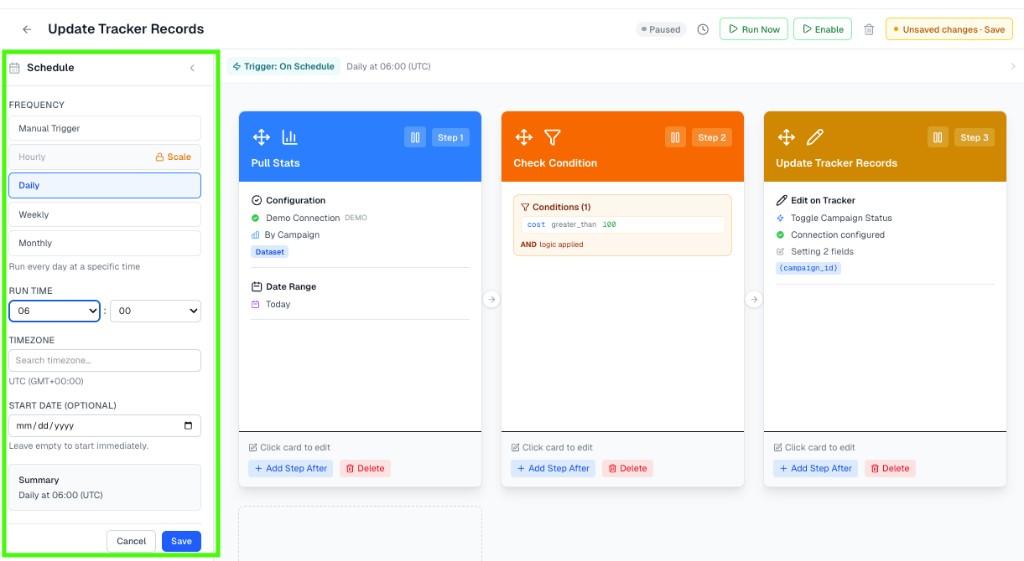
Open the Schedule drawer to set Manual, Hourly, Daily, Weekly, or Monthly cadence, along with run time and timezone. Plans differ: Starter allows Monthly or Run Once; Daily/Weekly require Pro or Pro+. Builder schedules display in UTC—convert local business hours accordingly. Remember: “Yesterday” and “Last 7 days” inside Pull Stats follow that step’s timezone, not necessarily the schedule clock.
Read more
11. Confirm in Runs & Logs
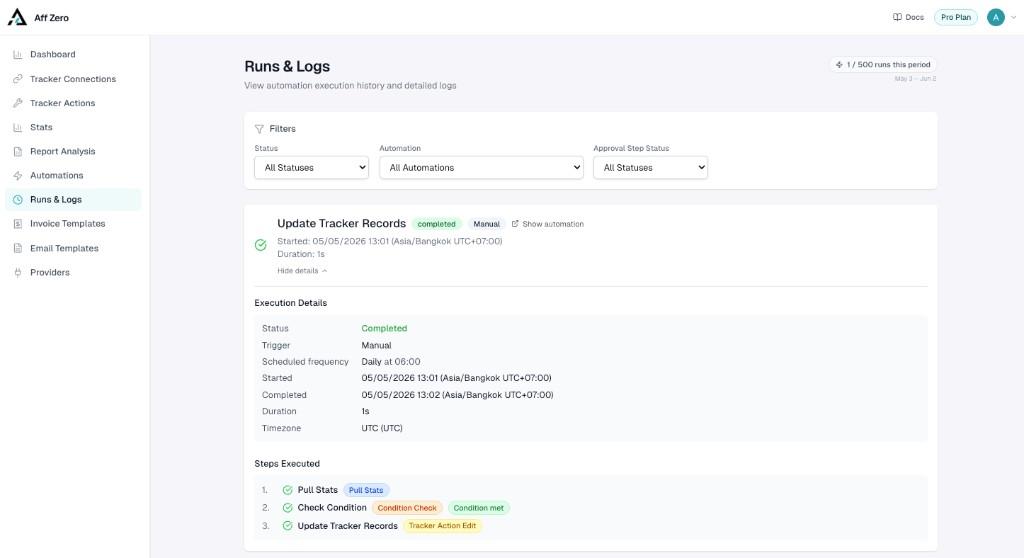
Runs & Logs lists every execution—scheduled or manual—with duration, trigger type, and per-step output. Expand the entry to verify Pull Stats, Condition met, and the Tracker Action step all succeeded. Need the deep dive on statuses, email history, and troubleshooting? Jump to the Runs & Logs guide next.