Using Automation Presets
Start from a ready-made workflow instead of building from scratch — presets wire up the right steps so you just fill in your data.
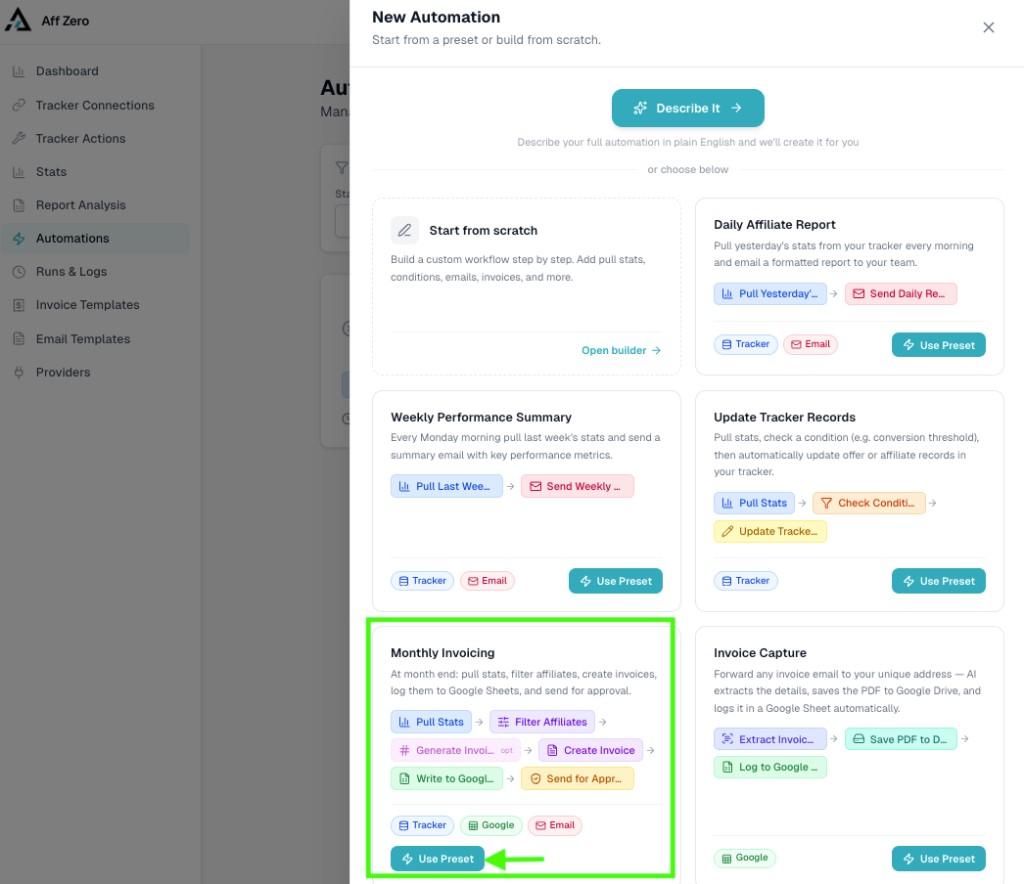
Presets appear when you click **New Automation**. Each card shows the step chain and the integrations needed. This walkthrough uses **Monthly Invoicing** (Pull Stats → Filter → Generate Invoice Number → Create Invoice → Write to Sheets → Send for Approval), but every preset follows the same pattern.
1. Choose a preset
Click **New Automation** and scroll the cards. Click **Use Preset** on **Monthly Invoicing**. The automation is created in Paused state with all six steps stubbed out.
2. Six-step canvas, ready to configure
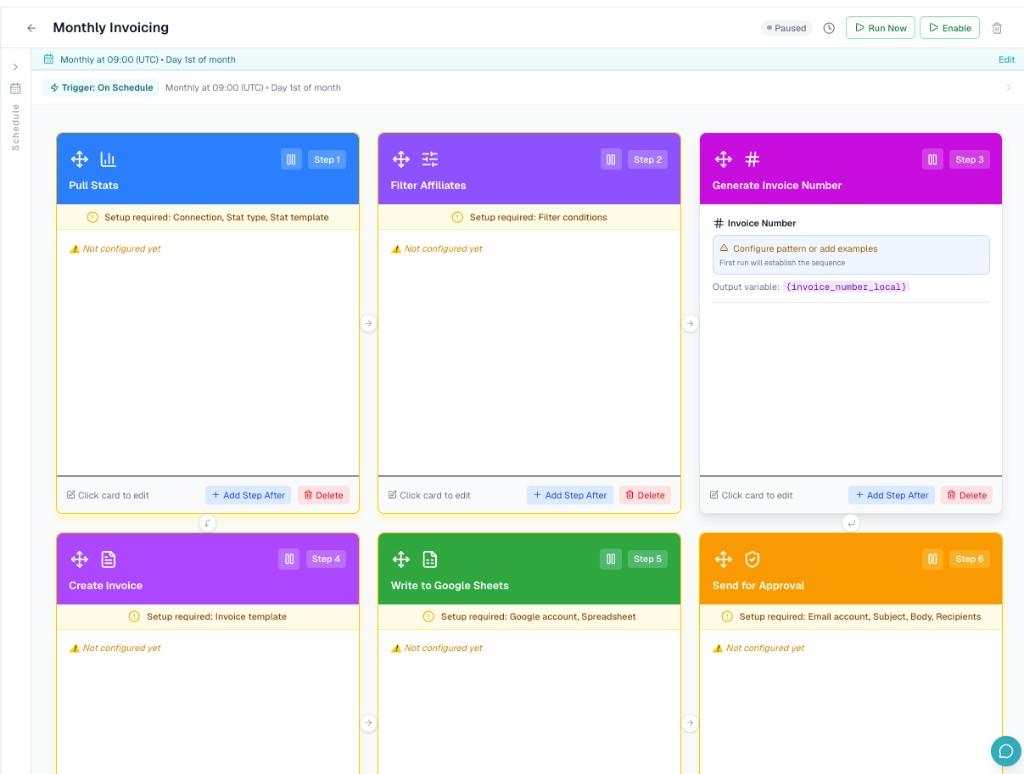
The builder opens with Pull Stats → Filter Affiliates → Generate Invoice Number → Create Invoice → Write to Google Sheets → Send for Approval already chained. Click any card to configure it; nothing saves until you click **Save** in the header.
3. Pull Stats — pick connection and stat type
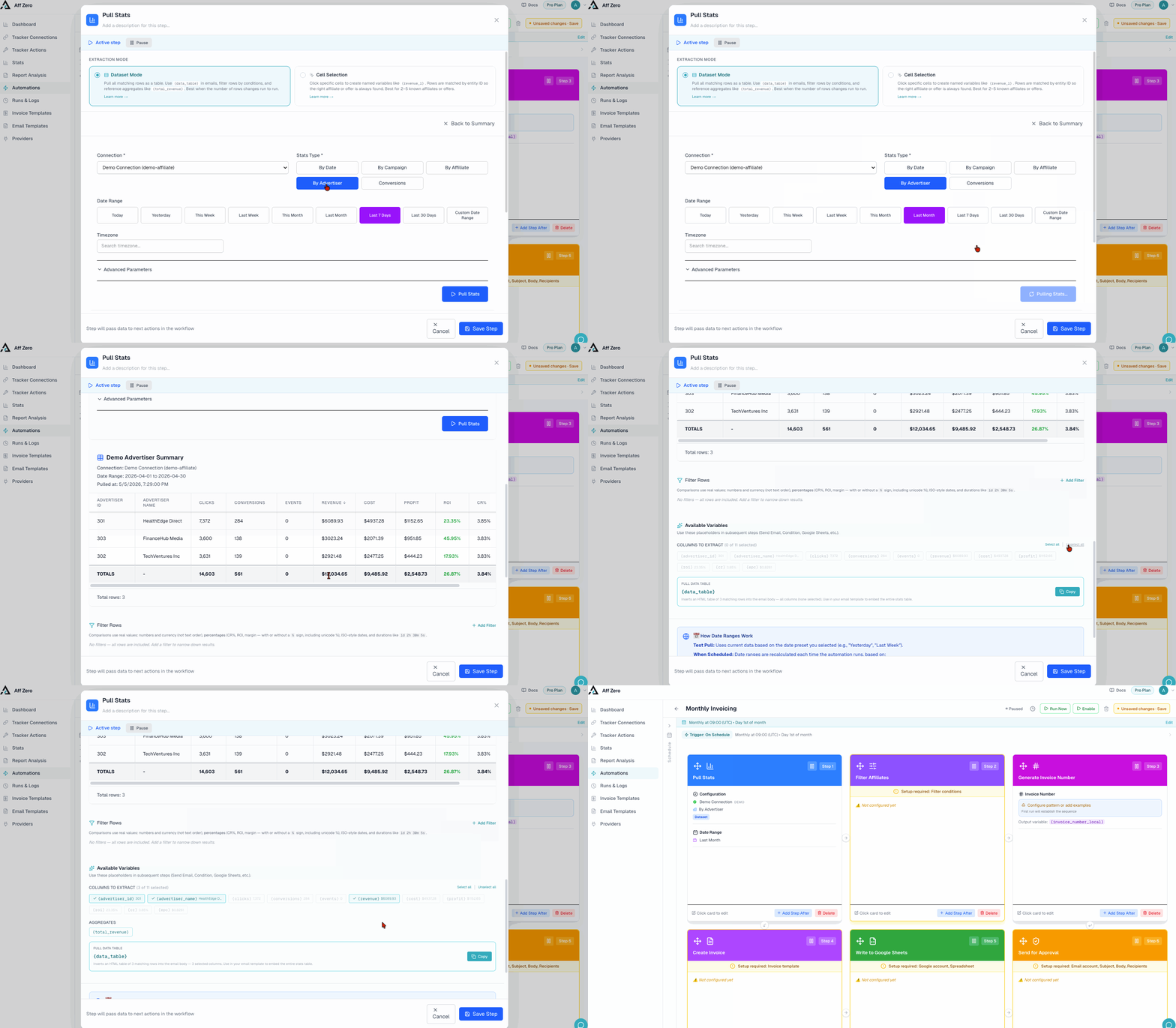
Open **Step 1**. Choose **Dataset Mode** for invoicing (row count varies month to month). Select your connection, **By Advertiser** (or whichever type matches your setup), and **Last Month**. Run a test pull to confirm the numbers look right.
Read more
4. Filter Affiliates — narrow the dataset
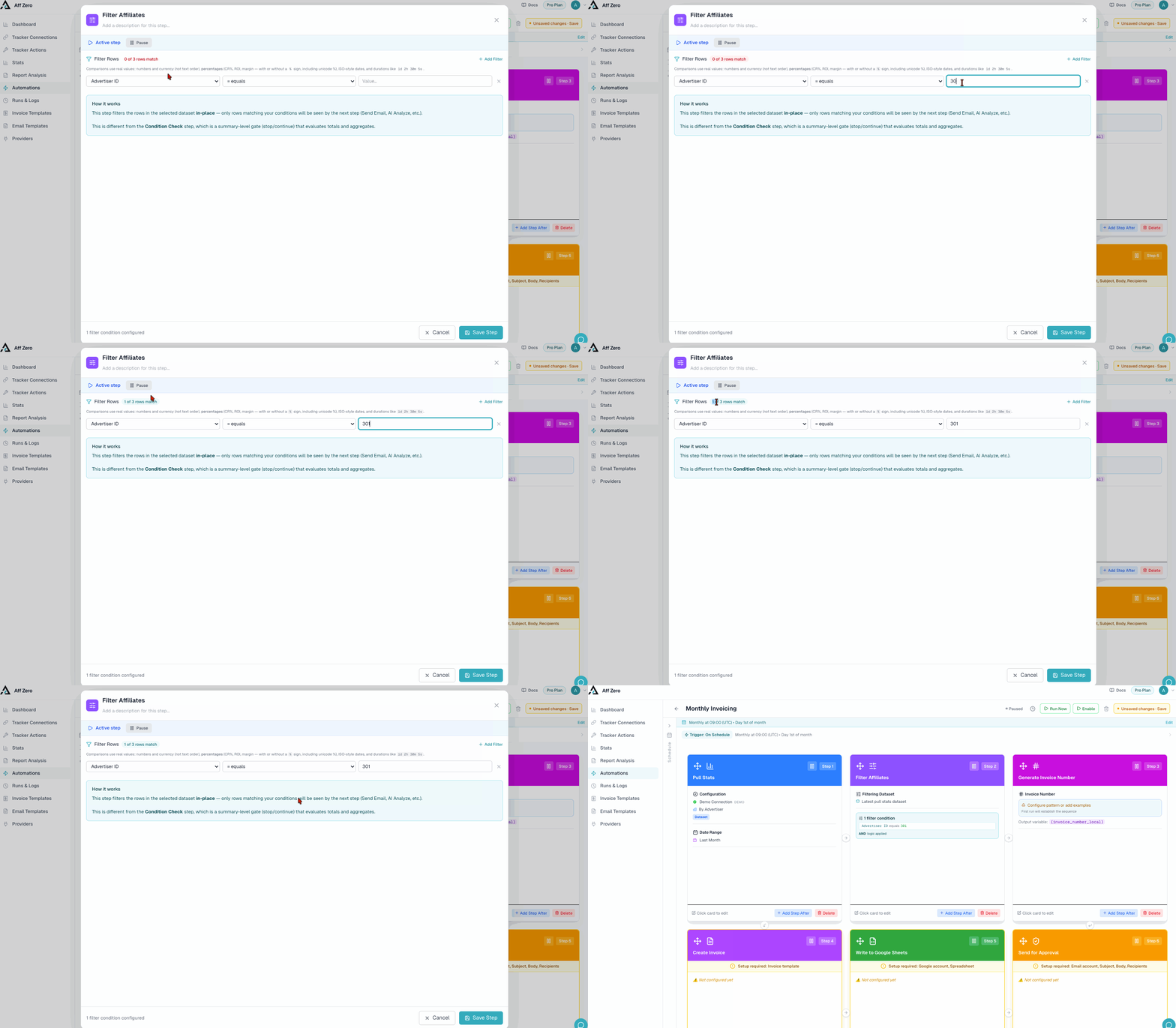
**Filter Affiliates** removes rows you don't want invoiced. Add a rule such as **Advertiser ID equals 381** (or filter by name, revenue threshold, etc.). Rows that don't match are dropped before Create Invoice runs.
Read more
5. Generate Invoice Number — local sequence
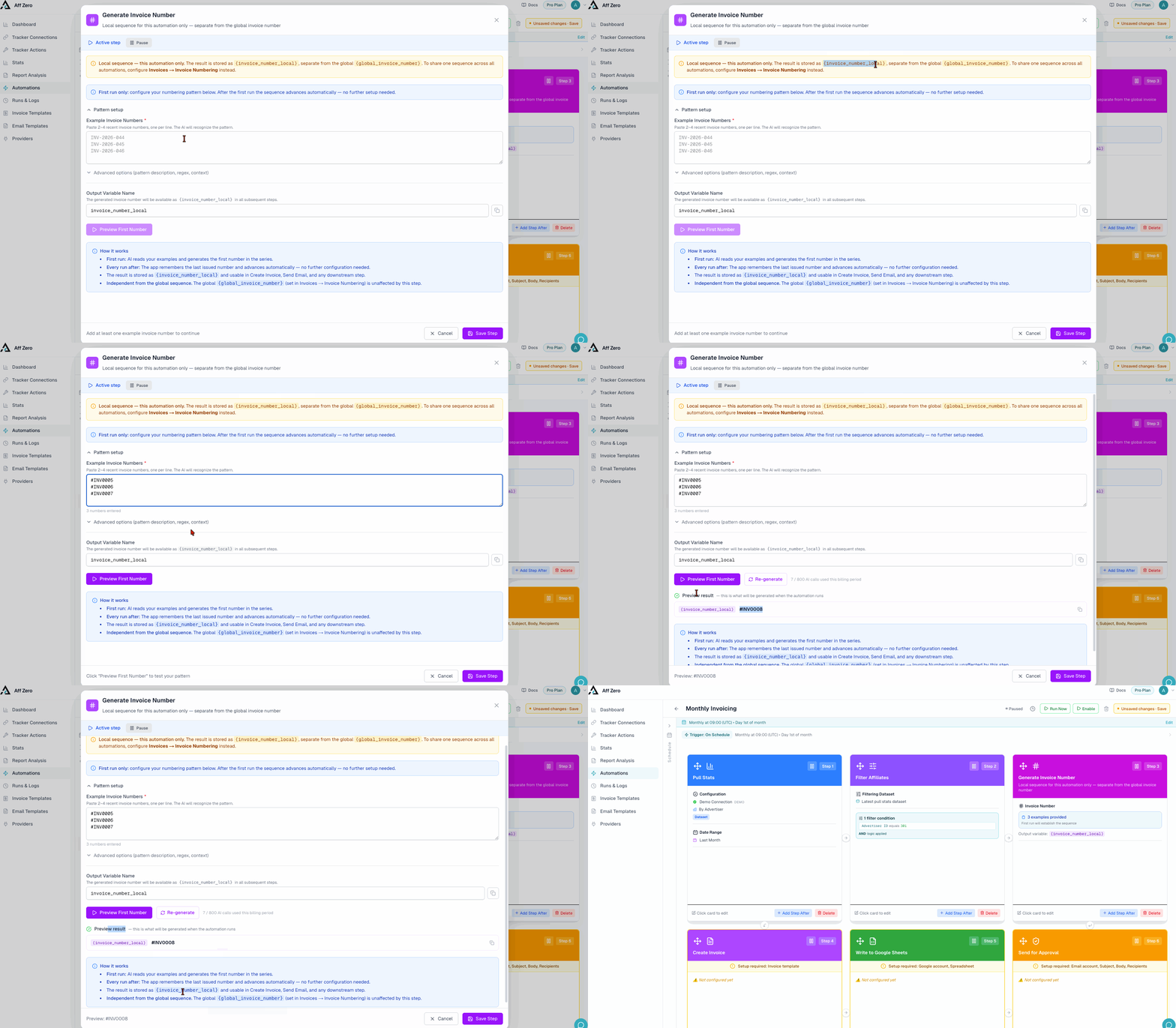
Paste 2–4 recent invoice numbers (e.g. `INV-2026-044`, `INV-2026-045`). The step infers your pattern and advances a **local** counter stored in `{invoice_number_local}`. Expand **Advanced options** to add a pattern description or regex if needed.
Read more
6a. Create Invoice — choose your template
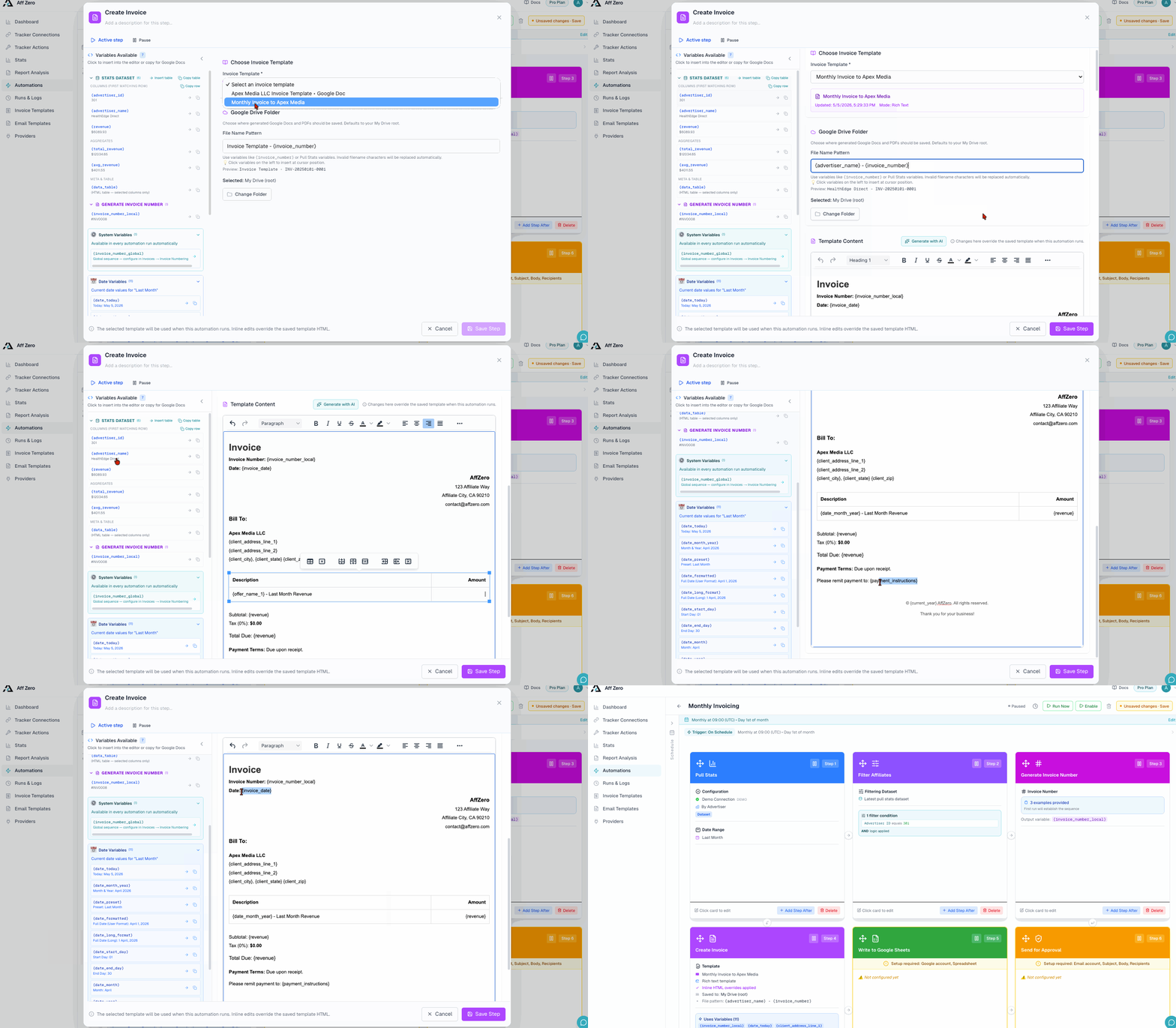
Pick the invoice template and set a **File Name Pattern** using variables (e.g. `{advertiser_name} – {invoice_number_local}`). The Variables panel shows everything available from earlier steps.
Read more
6b. Create Invoice — Google Doc template path
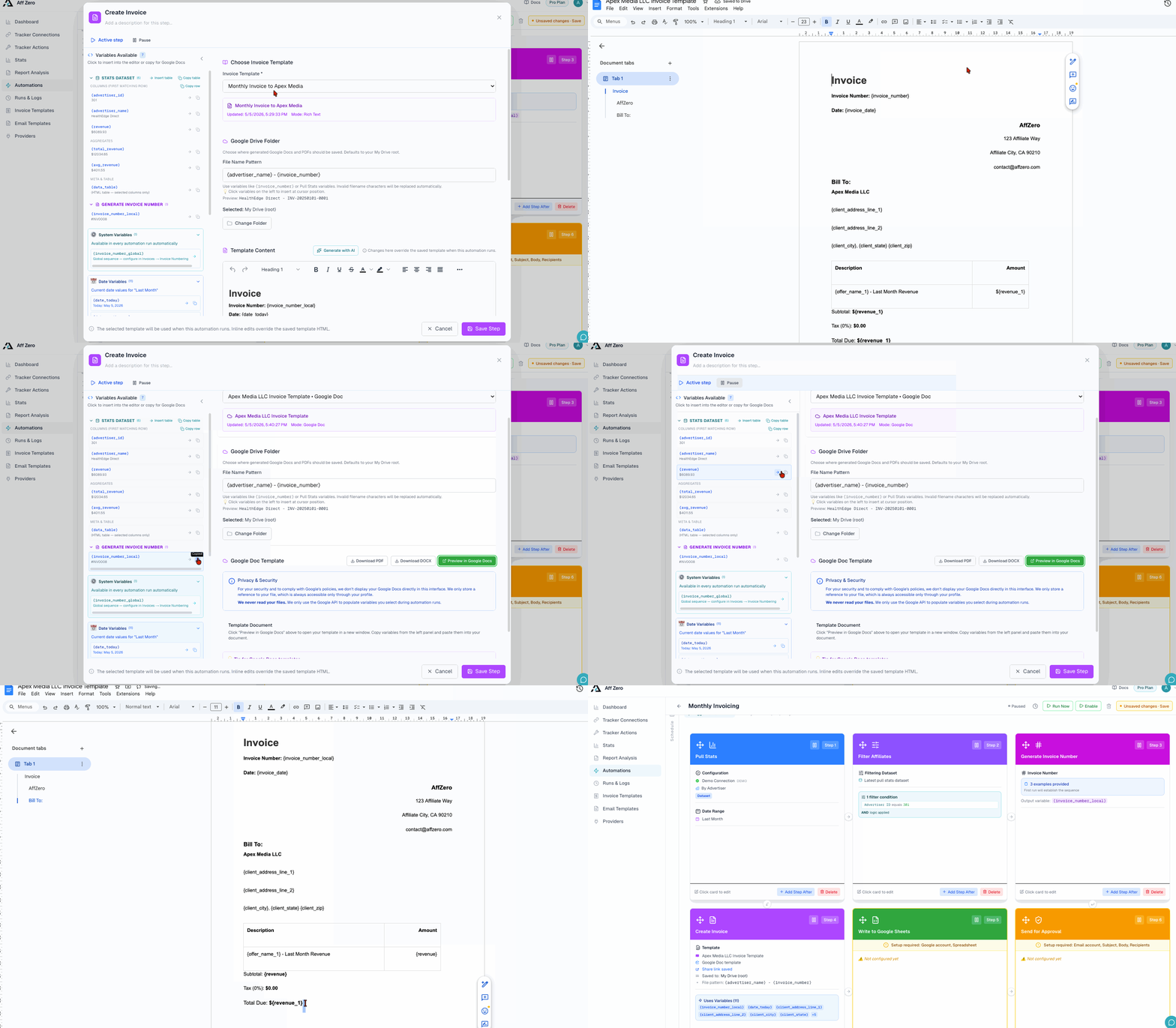
If you select a Google Doc template, toggle **Save to Google Drive** to archive the generated PDF in a Drive folder. Choose a **Drive Folder** via **Change Folder**. The inline editor lets you override template content just for this automation.
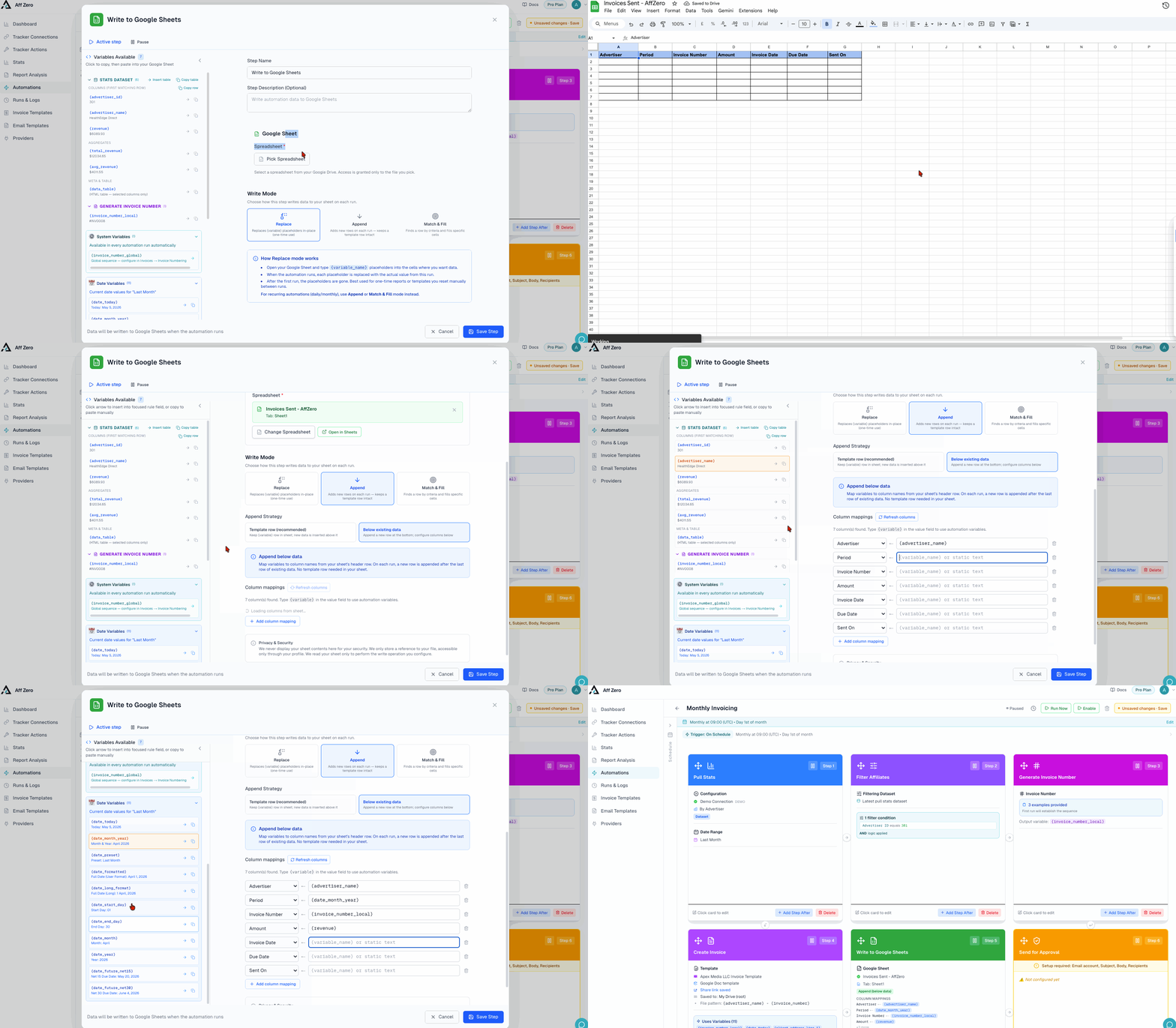
7. Write to Google Sheets — log the invoices
Pick your spreadsheet and tab via the Drive Picker. Choose **Append** to build a running history. Map columns to variables: Advertiser → `{advertiser_name}`, Period → `{date_month_year}`, Invoice Number → `{invoice_number_local}`, Amount → `{revenue}`.
Read more
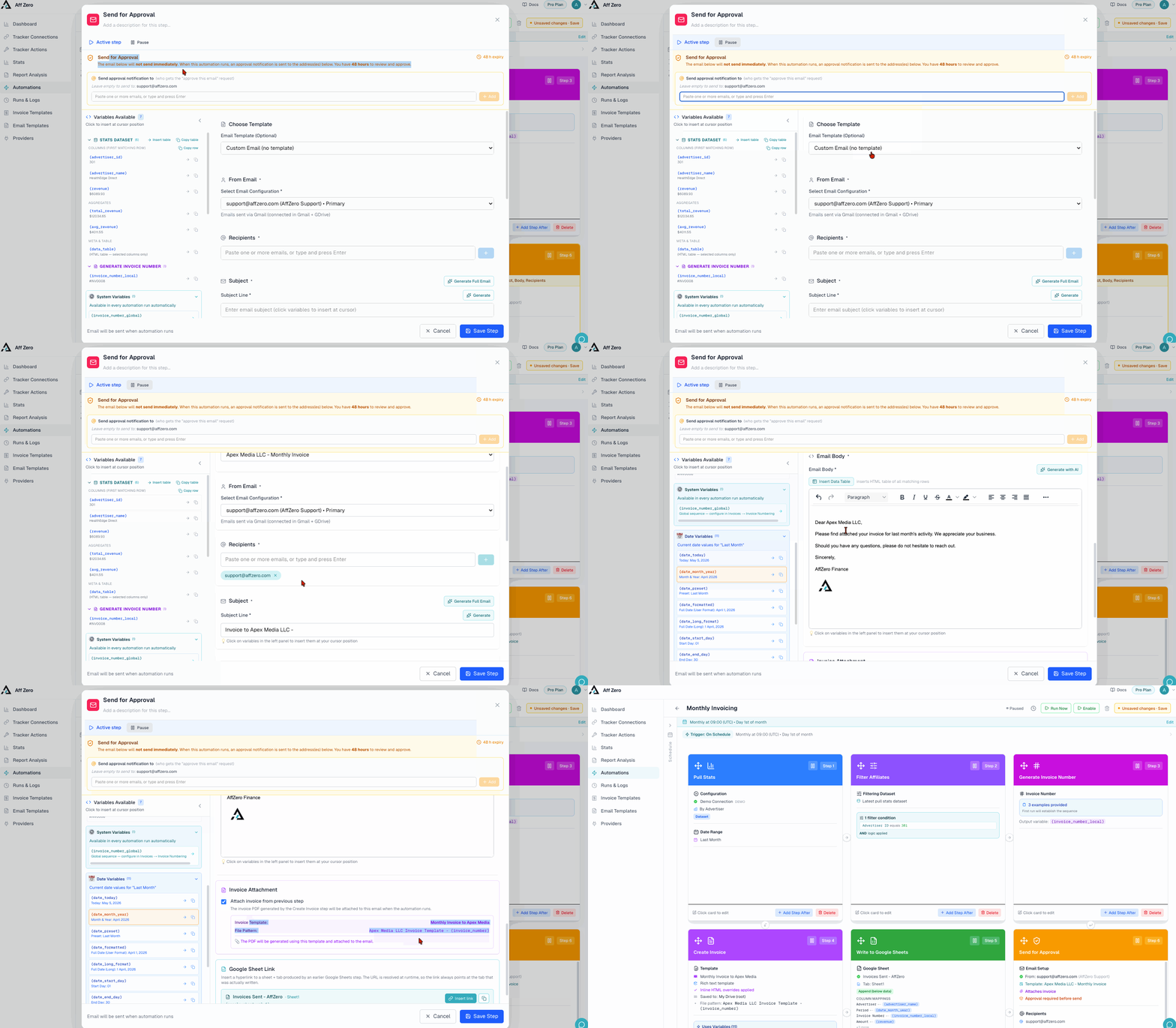
8. Send for Approval — review before sending
Configure like a Send Email step: **From**, **Recipients**, **Subject** (with variables), **Template**, and **Attach Invoice**. The email is queued for manual approval before it leaves your inbox.
Read more
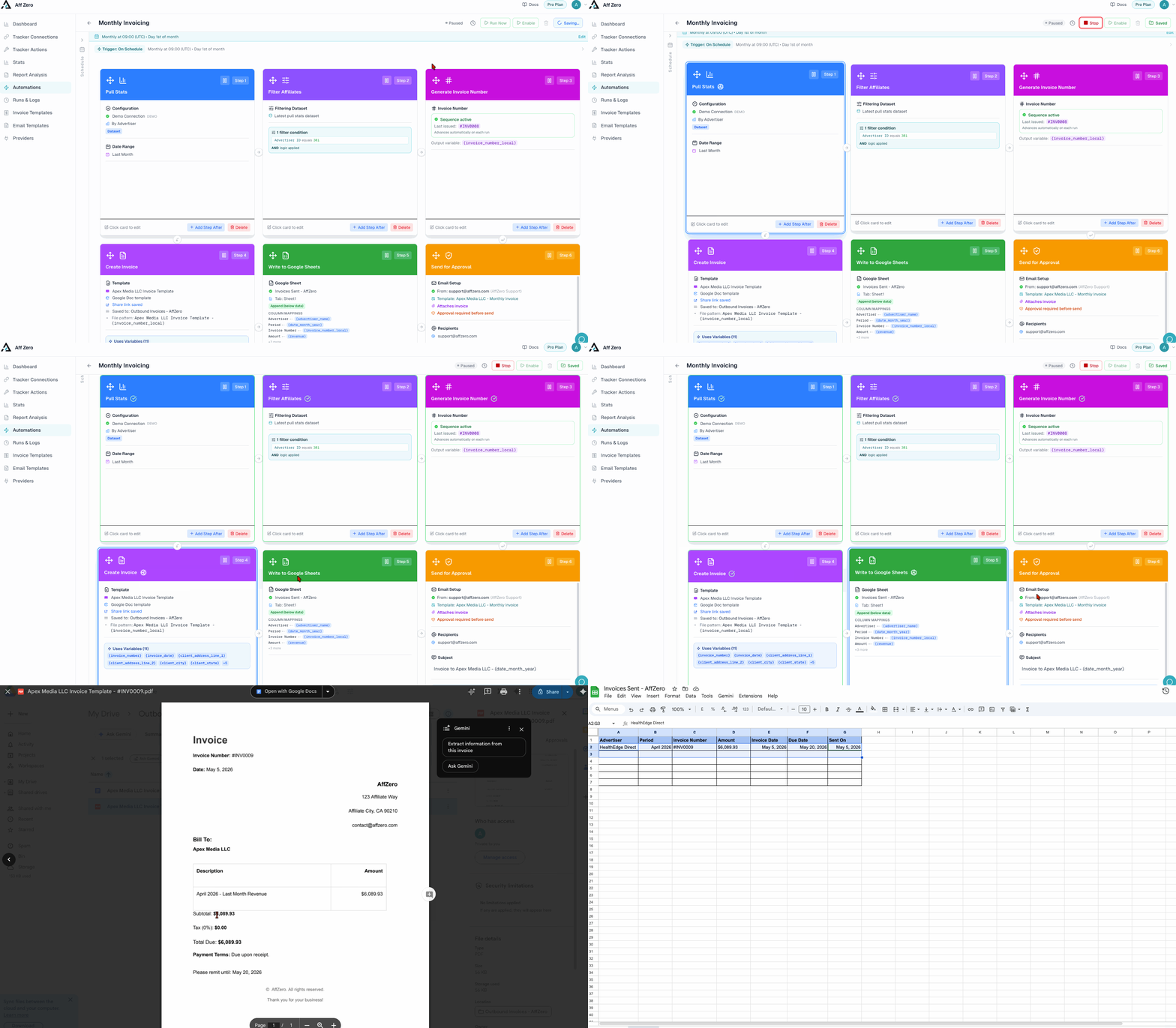
9. Save, then Run Now
Click **Save** in the header. Then **Run Now** to execute the automation live. This is a **real run** — Pull Stats fetches live data, Create Invoice generates a real PDF, Write to Google Sheets writes to your actual sheet, and Send for Approval queues a real email for review. Use it to verify the end-to-end flow, but know that all actions take effect immediately.
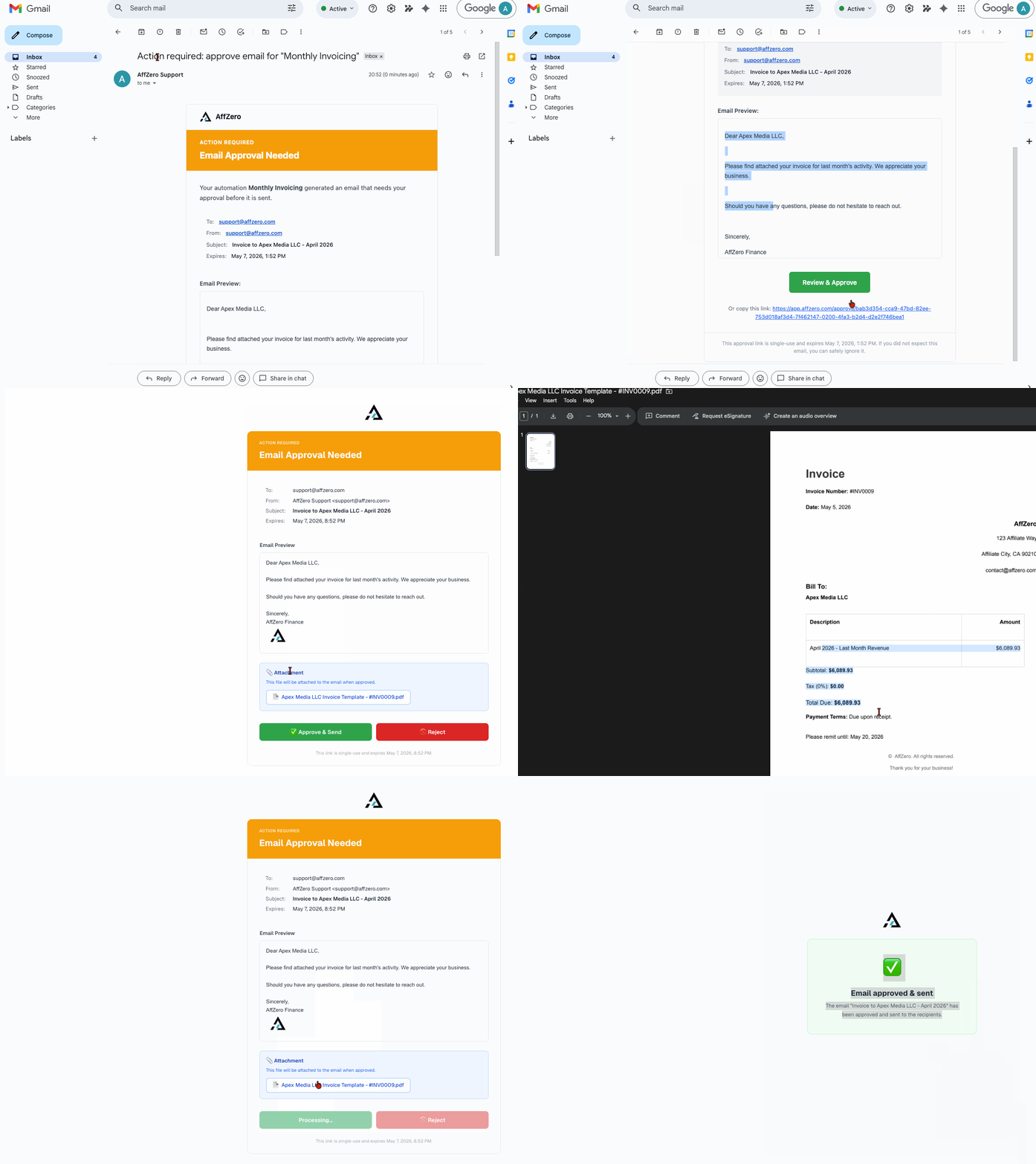
10. Approve the draft invoice email
After Run Now, an **Action required** email lands in your inbox with a preview of the draft. Review the invoice details, recipient, and subject, then click **Approve** (or reject and rerun after editing).
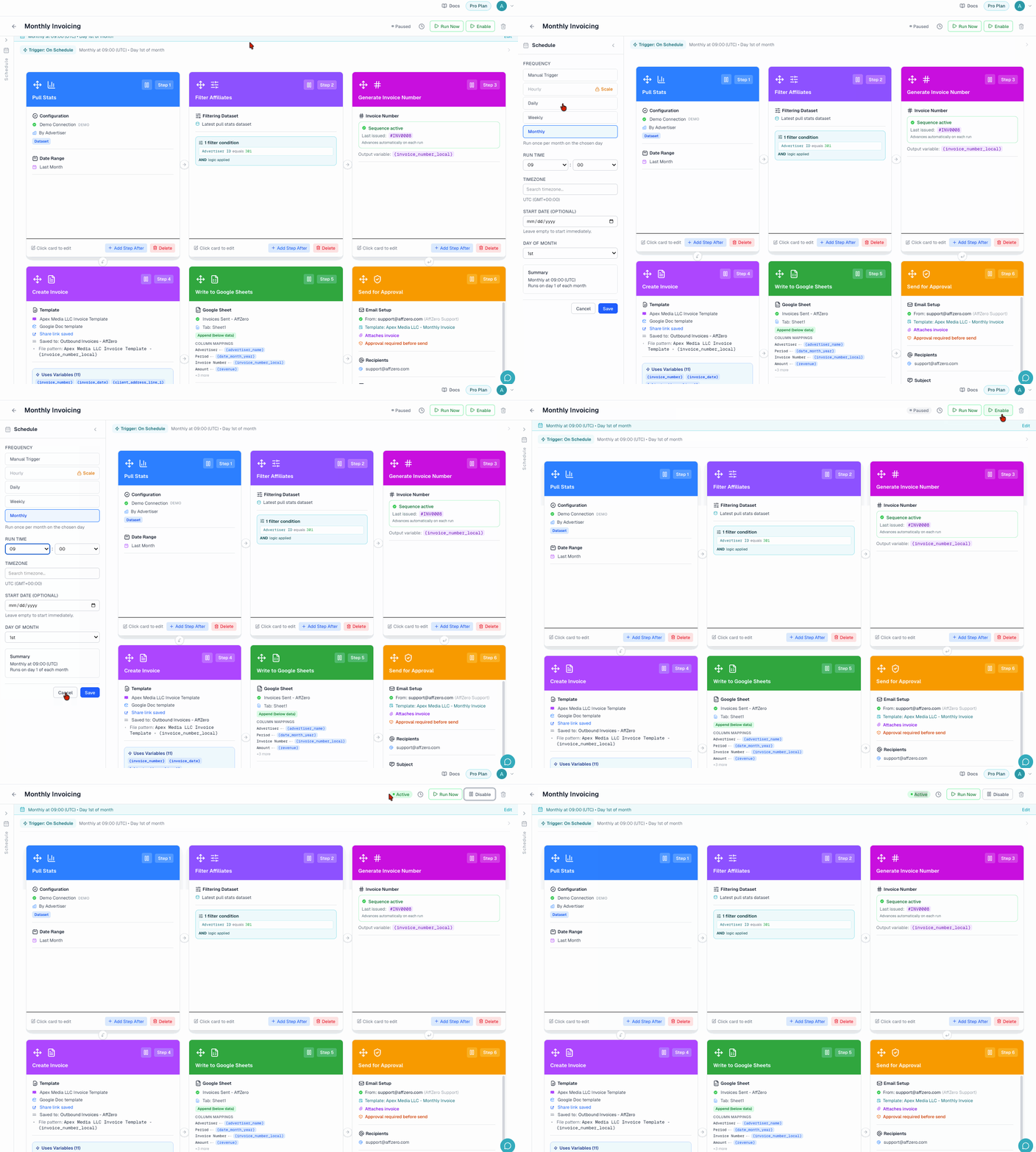
11. Enable for automatic monthly runs
Once the test looks right, click **Enable** in the builder header. The automation will now run on its schedule (Monthly at 09:00 UTC, Day 1). Check **Runs & Logs** after the first real run to confirm each step completed.
12. See the full run in Runs & Logs
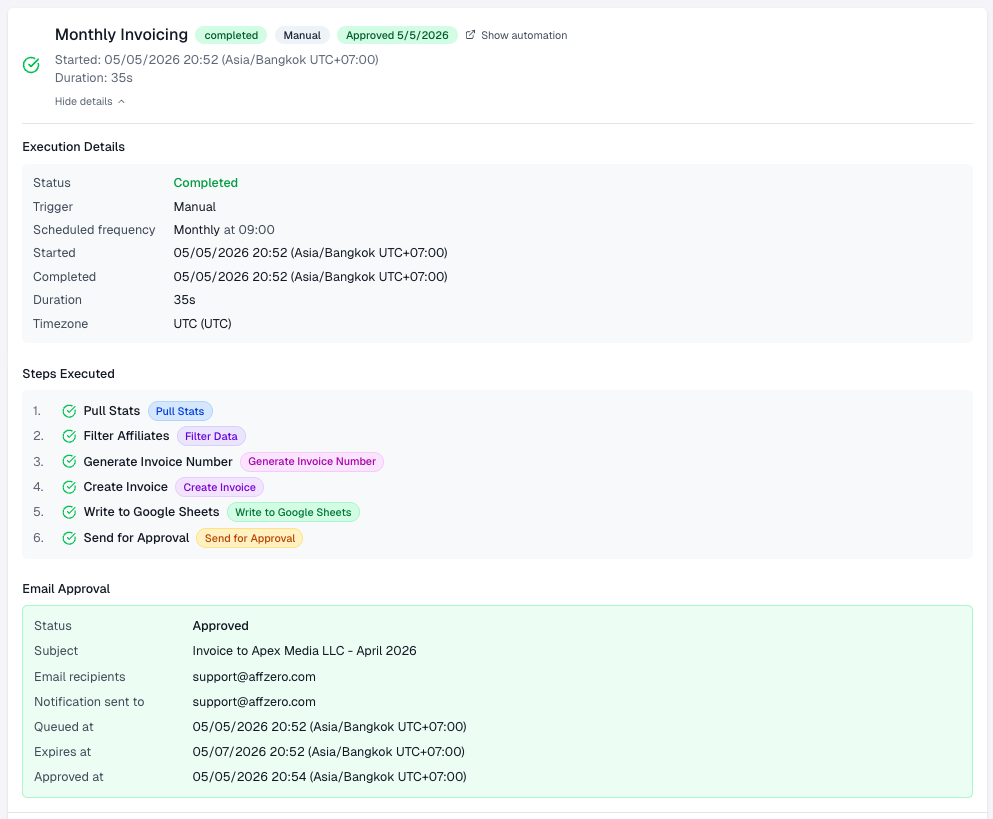
Open **Runs & Logs** and pick your run to see duration, every step with a green check, and the **Send for Approval** block (subject, recipients, queued / approved timestamps). This is the single place to audit what the preset did end to end.
Read more