Invoice Templates
Rich Text (HTML) or Google Doc layouts—with variables merged at PDF generation and delivered by your automations.
**PDFs** come from **Rich Text** (in-app) or **Google Doc** templates, then a **Create Invoice** step. Tabs: **Templates** · **Generated Invoices** · **Invoice Numbering** (`{global_invoice_number}`). Variables you write inside an invoice template (e.g. `{revenue_1}`, `{invoice_number}`) are **design-time placeholders only**. They won’t resolve automatically — they must exactly match the variable names that the automation’s Pull Stats and other steps produce at runtime. When you attach a template to a **Create Invoice** step, confirm every placeholder against the **Variables Available** panel for that specific automation. **Google Doc** paths additionally need **Gmail + GDrive** linked.
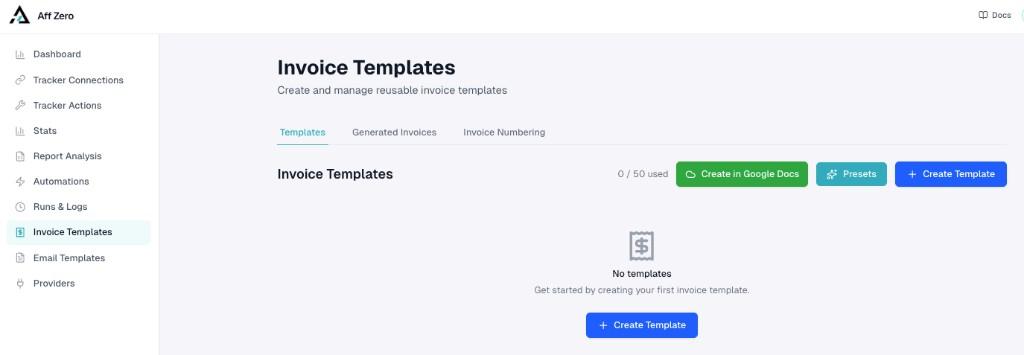
1. Invoice Templates hub
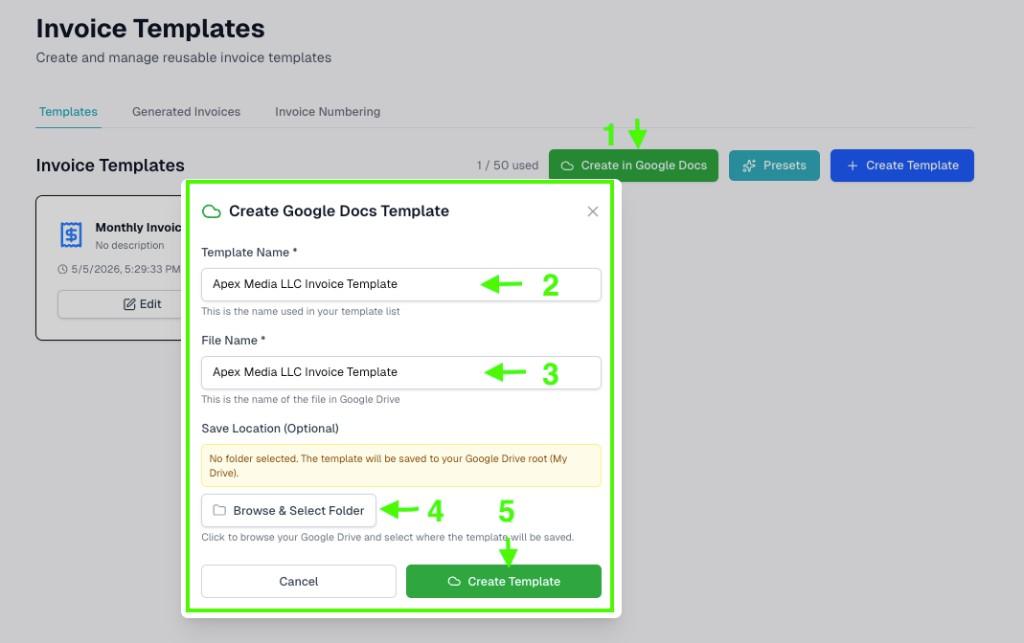
Use **Create in Google Docs** for Workspace-friendly layouts, **Presets** for starters, or **+ Create Template** for Rich Text from scratch. The usage badge shows how many templates your plan allows.
2. Rich Text template basics
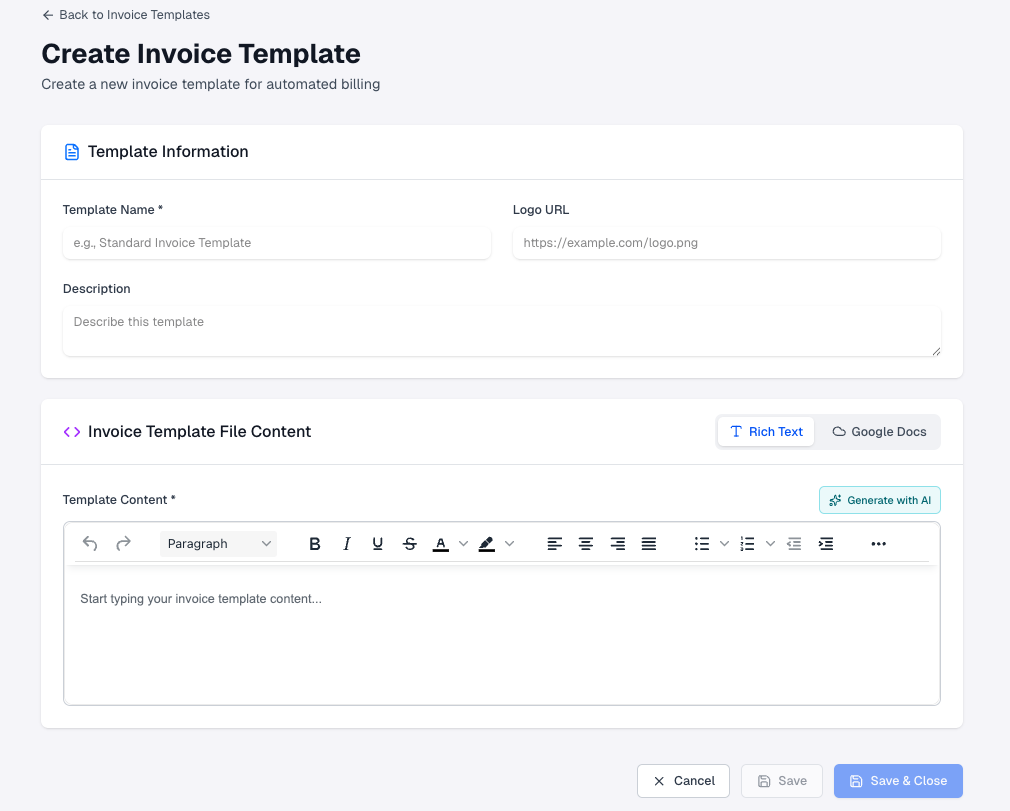
Set name, optional logo URL, and description. Toggle **Rich Text** vs **Google Docs** in the content area—here Rich Text gives the built-in editor. Paste HTML-style content or type directly; switch to Google Docs only when you intend to bind an external document later.
3. Draft with AI
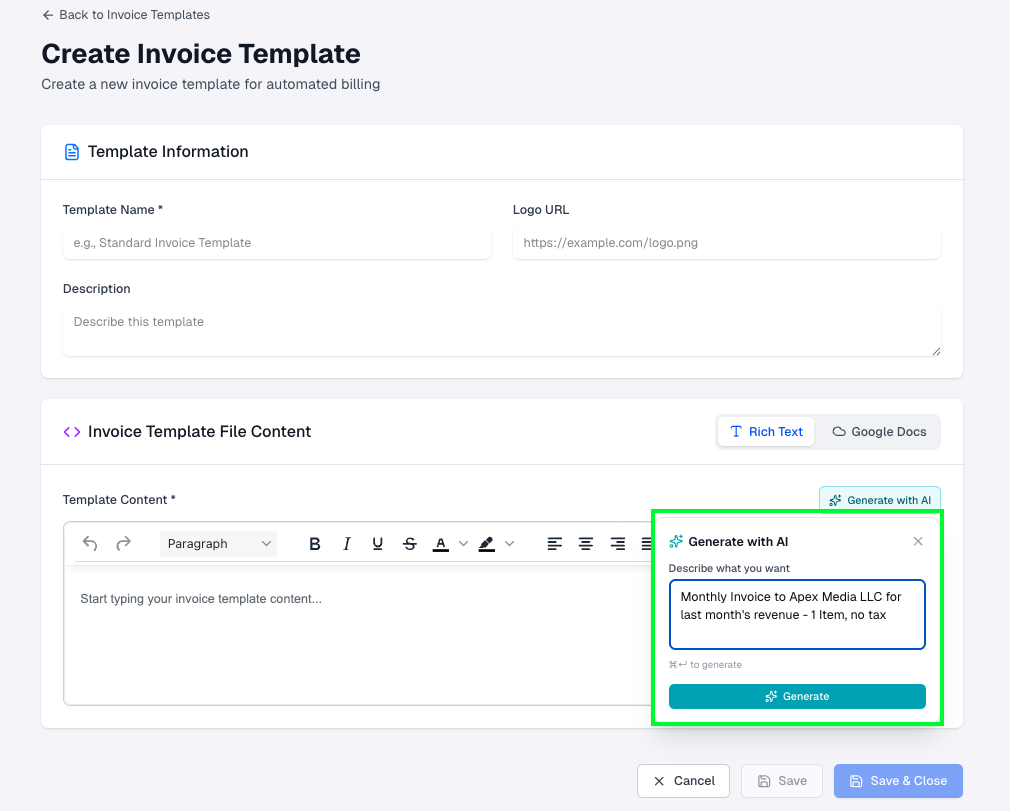
**Generate with AI** opens a prompt (e.g. “Monthly invoice—one line item, no tax”). Describe layout, fields, and tone; accept or iterate before wiring real variables from Pull Stats.
4. Apply and tune
Review the draft in the side preview, **Regenerate** if needed, then **Use This** to drop the layout into the editor. Adjust headings, tables, and braces so every `{…}` token exists upstream of Create Invoice.
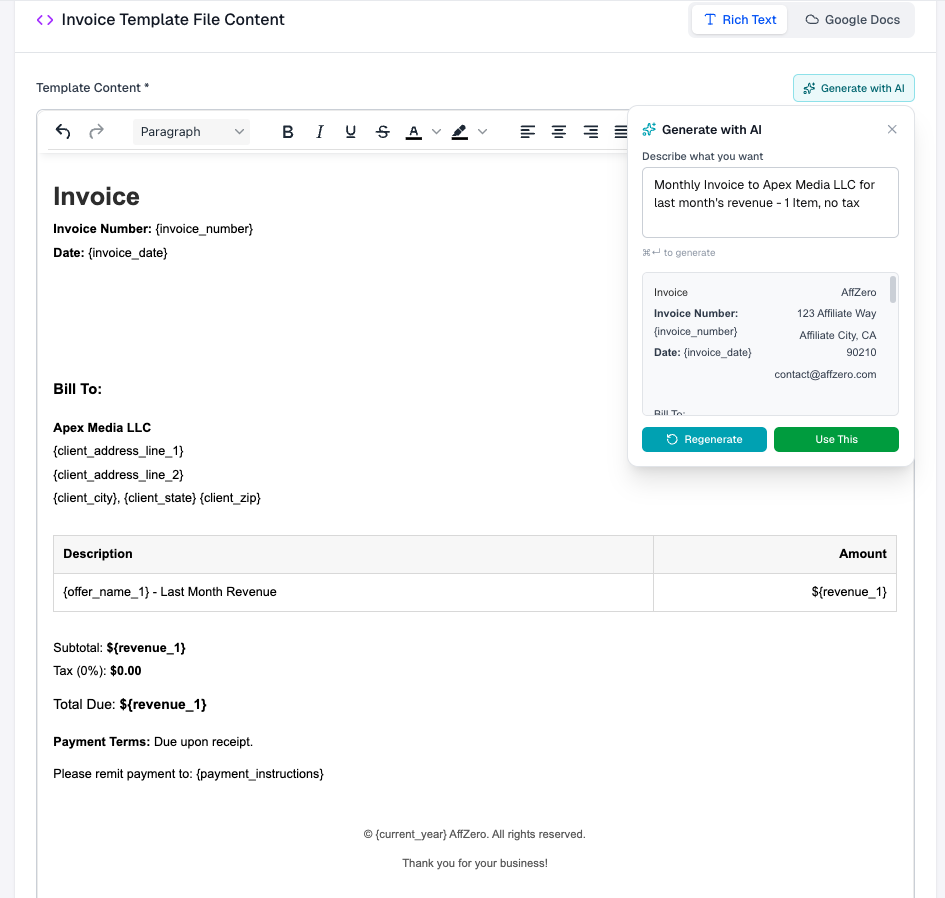
5. Save a Rich Text template
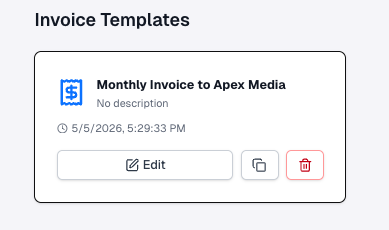
When the body matches your workflow, **Save & Close**. The card exposes **Edit**, **Duplicate**, and **Delete**—duplicate before risky experiments on production layouts.
6. Create a Google Doc template
**Create in Google Docs** opens a modal: template name, Drive file name, optional **Browse & Select Folder** (otherwise files land in Drive root on the connected account). Finish with **Create Template** after OAuth is configured under Providers.
7. Design placeholders in Docs
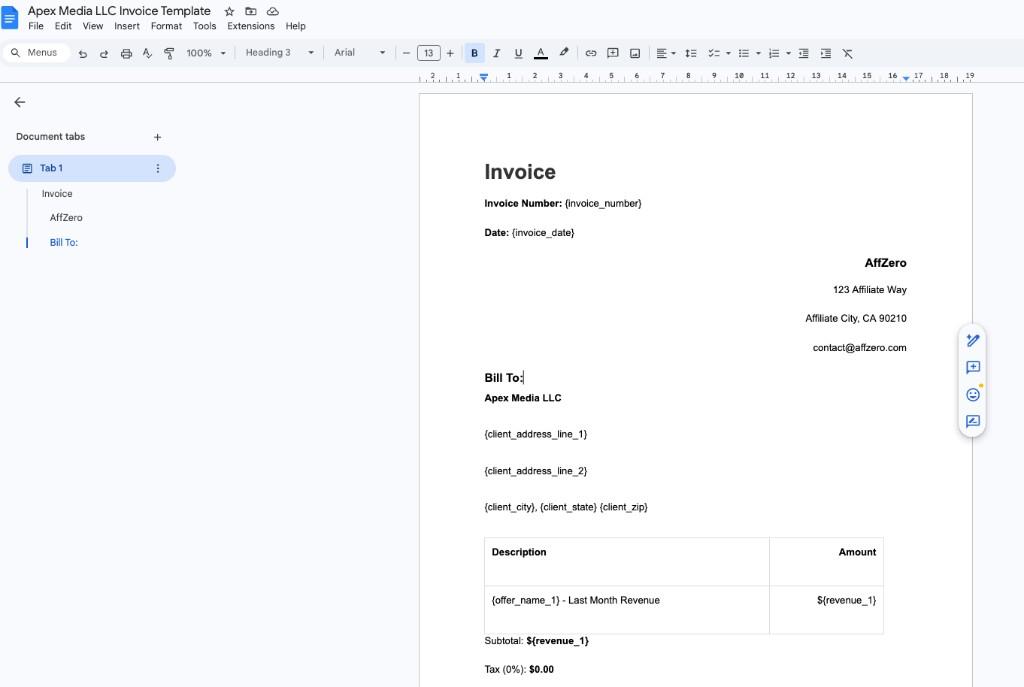
Open the Doc yourself (or **Open in Google Docs** from the template card). Insert `{invoice_number}`, `{invoice_date}`, address lines, `{revenue_1}`, etc.—must match automation variables exactly, case-sensitive.
8. Manage the link in AffZero
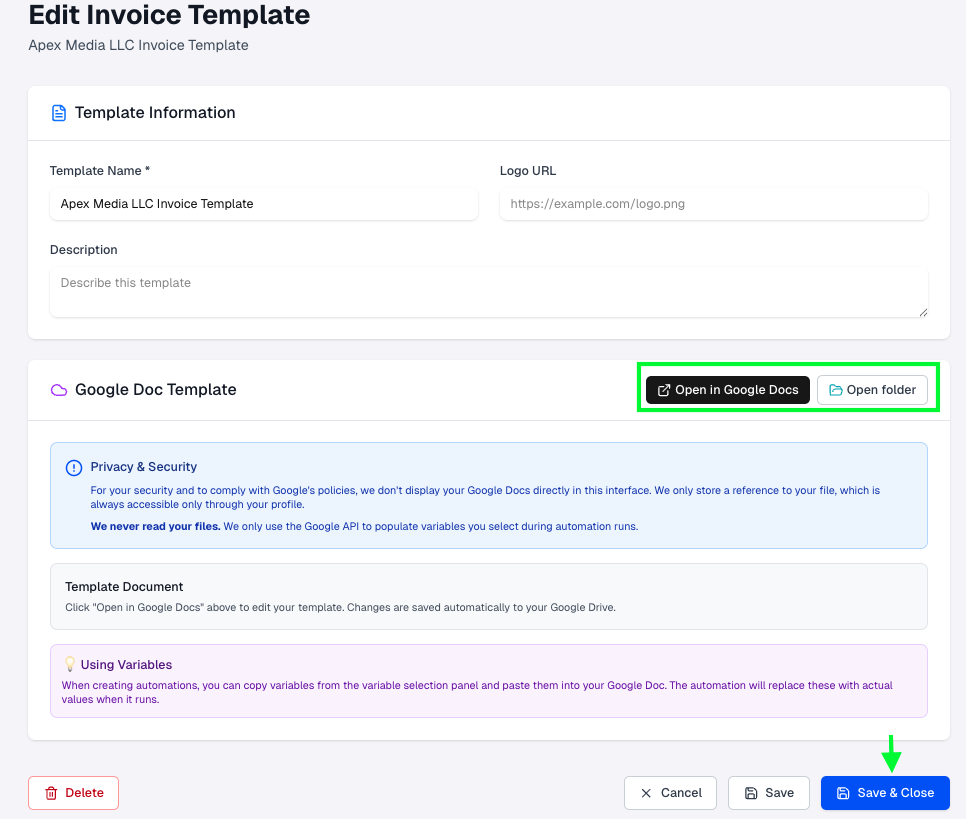
The editor shows privacy copy: we render via API, not inline embedding. Use **Open in Google Docs** / **Open folder** while testing; **Save & Close** when metadata is correct. Limitations: only docs the connected account can access; complex text boxes may PDF oddly—test with Run Now.
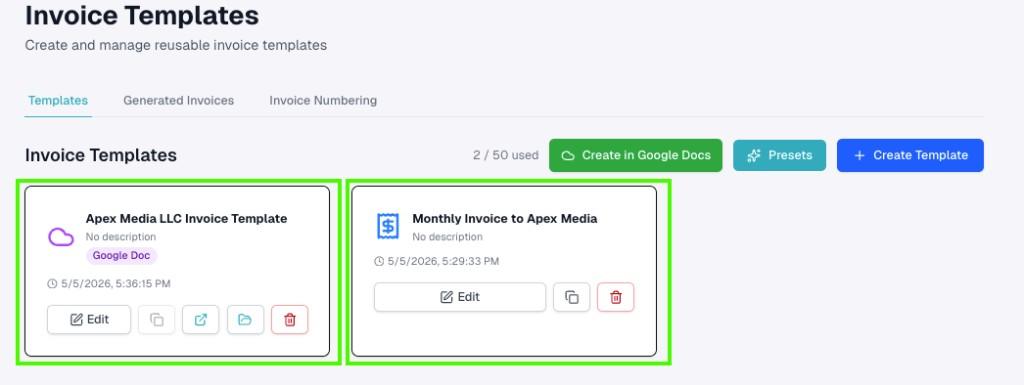
9. Both types in your library
Cards distinguish **Google Doc** vs Rich Text invoices. Reuse either template across automations; enable **Save to Google Drive** on Create Invoice when you want PDFs archived next to the template. Next: add Create Invoice + Send Email, confirm numbering under Invoice Numbering, then schedule or Run Now.
Read more